
Pin-It is a simple Chrome and Firefox extension that makes it easy to keep a set of tabs pinned.
Install on Chrome Install on Firefox
Why?
Do you like having e-mail, slack, calendar, and other sites open while you work?
If so, this extension is for you! Never forget to open a website or forget where the tab went.
Configure Pin-It with the sites you want it to open, and every time you click on the extension icon, it’ll set your pinned tabs to your sites.
How?
Step 1
Download the extension from the Chrome Webstore or via Firefox add-ons.
Step 2
Open the options page for the Pin-It extension.

Step 3
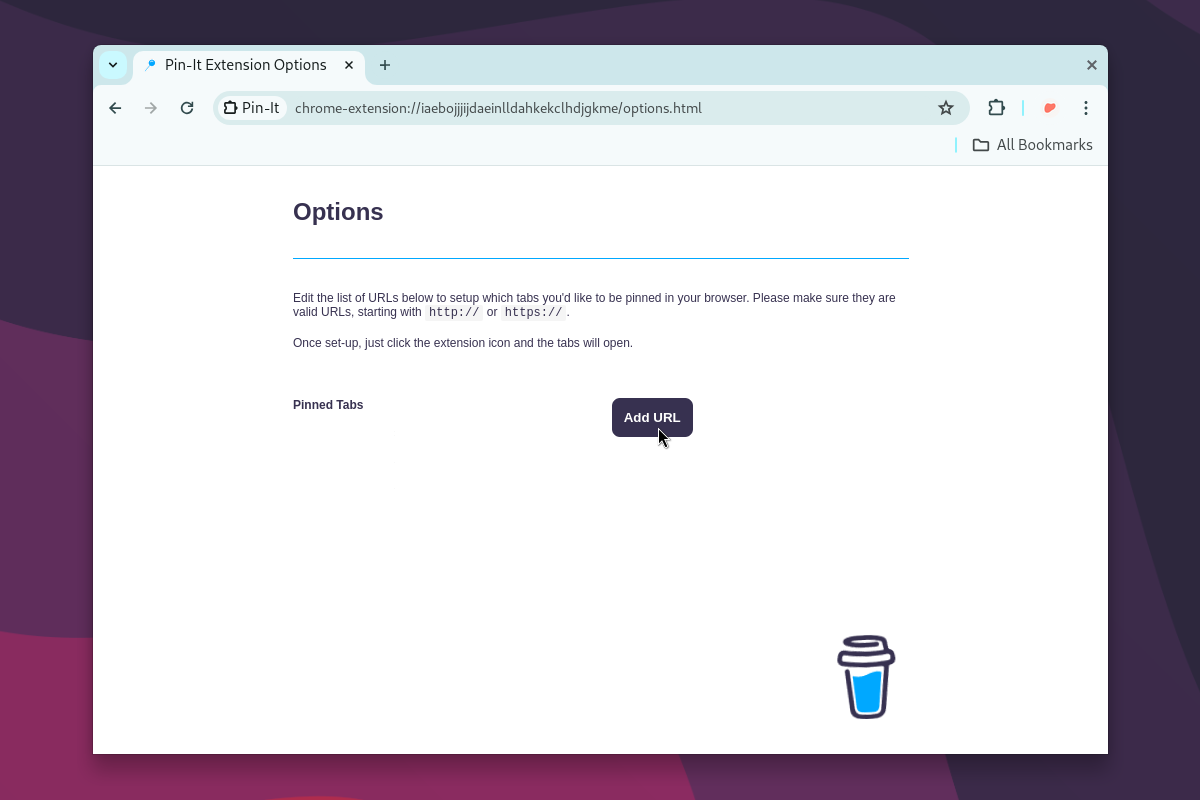
From the options page, click on the Add URL button to add the sites
you want pinned.
Do this for each site you want pinned.
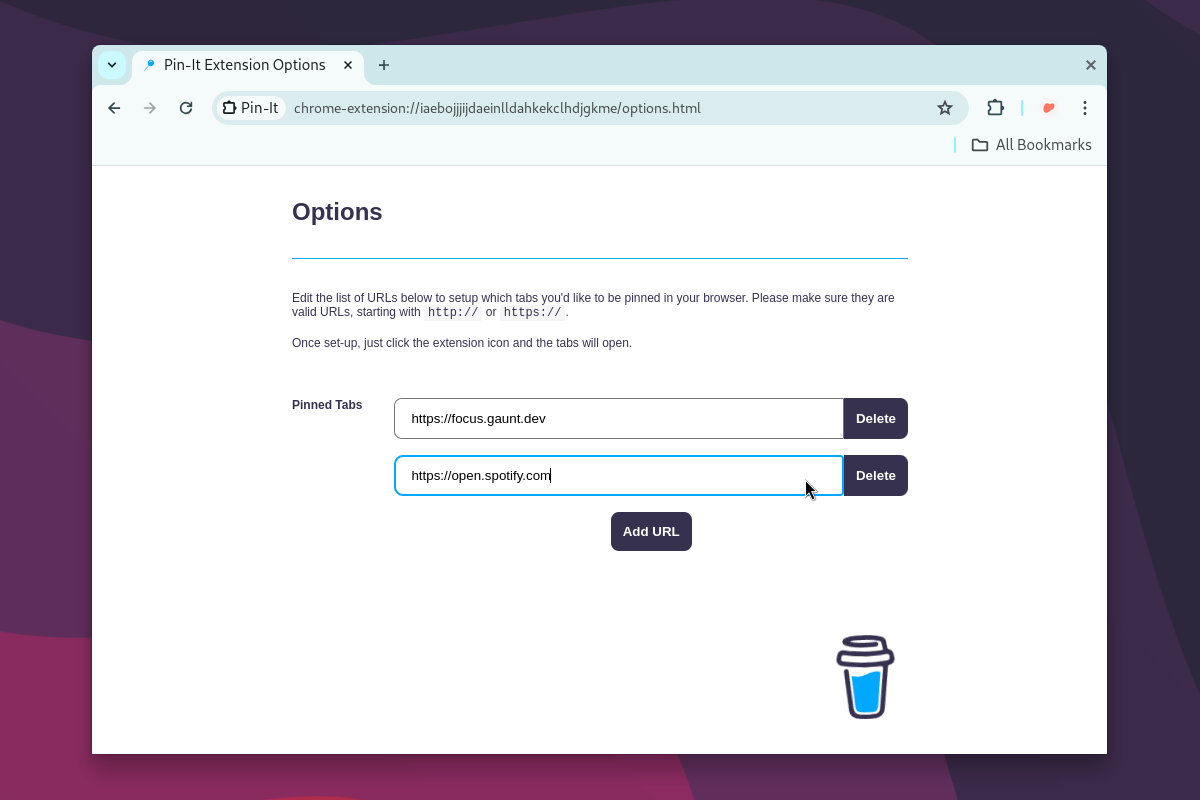
Your sites will save as you type.
Step 5
Now, click the Pin-It extension icon to open your pinned tabs

Step 6 - Optional
You can make the Pin-It extension stick to your URL bar by pinning the extension itself.

Once it’s pinned, you can click on the Pin-It icon to set up your tabs.

Changing your URLs
You can change the pinned URLs at any time by right-clicking the Pin-It
extension (or the menu icon) and selecting Options.
Found an Issue?
If you've found an issue, please report it here.
Want the Source Code?
This project is available on GitHub at github.com/gauntface/pin-it-extension.
Found an issue?
All my posts are available to edit on GitHub, any fix is greatly appreciated!